Missing satellite TV channels? What to check before retuning
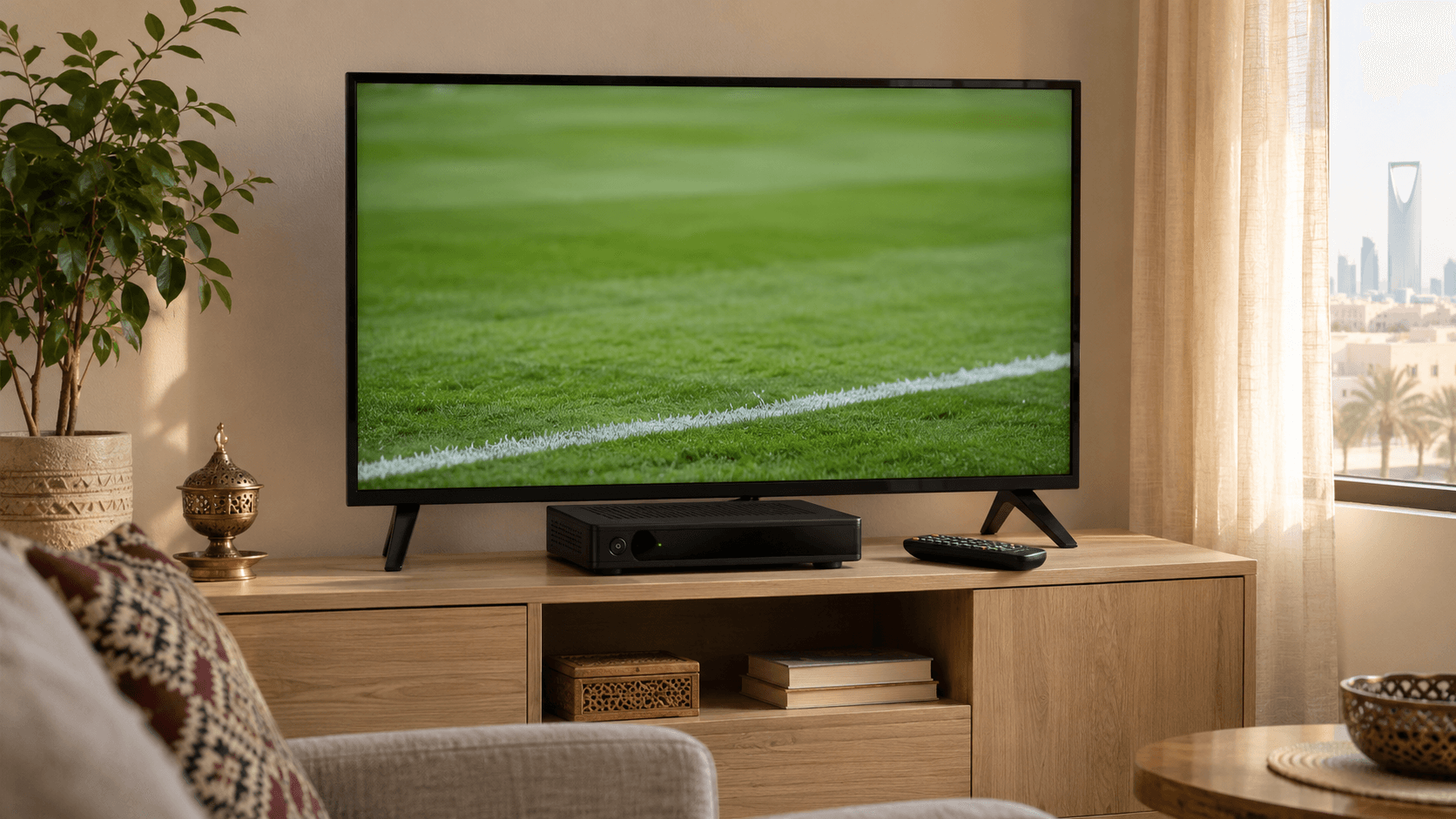
You switch on the TV for a match and the channel you saved last season won't play. A few other channels still work. That pattern gives you a better starting point than resetting the receiver. Check what still plays, then find out whether the broadcaster changed where the channel is carried.
Check what still plays, confirm the current satellite in the broadcaster’s guide, and note which rooms are affected before changing settings.
Find out where the message comes from
Try two or three channels you normally watch using the satellite receiver's remote. If you can see the receiver's channel list, you've confirmed that the TV can display the receiver's output. Write down whether the affected channel is missing from the list or still appears but won't play. Those are different clues.
If all you can see is the TV's own “No Signal” message, check that the receiver is on and that the TV is set to the matching HDMI input. For example, if the cable goes into HDMI 2, select HDMI 2 with the TV remote. Samsung Saudi Arabia's HDMI help explains how to check the selected source and connection.
Check the broadcaster's current listing
Thmanyah is a useful example for Saudi football viewers. Its official satellite channel guide says its satellite channels have been carried exclusively on Arabsat BADR-8 since August 2026. If your dish setup receives only Nilesat, running another scan on Nilesat won't pick them up. Thmanyah also lists its app as a separate way to watch matches.
Start with the official guide for the channel you're missing. Old screenshots can stay in family chats long after the settings have changed. Look up the satellite and current tuning details together, and check which channel is carrying the programme you want.
Scan for the channel when the setup supports it
When you have a separate receiver, follow its manual for adding a satellite channel. The search usually happens in the receiver's menu. If the dish cable goes straight into a TV with a satellite tuner, use the TV's satellite tuning menu. Keep a photo of the current settings and favourite channels before changing anything. Use the broadcaster's listed settings and check the results before removing an older entry.
Choosing a satellite name in a menu only selects the settings the receiver uses for the search. The dish setup has to receive that satellite first. If you are unsure what your home or building receives, ask whoever manages the dish before changing settings or ordering equipment.
Compare the affected rooms
Where two rooms share a dish, check the same channel on both screens, using the satellite feed in each room. For example, if a channel plays in the majlis but is missing in the living room, share that detail with the technician so they can compare the two receivers and connections. If several channels went out in multiple units that share a dish, ask building management whether other residents are affected. Leave rooftop equipment and shared wiring to the people responsible for them.
Describe the setup when you book
Send the receiver model, two examples of channels that fail, one that still plays if you have one, and a photo of the message. Say whether the dish is private or shared and which rooms are affected. If the receiver has a signal information screen, send a picture of it with the affected channel selected. Follow the same approach as in our guide to preparing for a home-service visit.
For help updating a receiver, check Tasko's indoor receiver programming listing and confirm the scope. If reception also needs checking at the dish, see receiver programming and dish alignment. Ask the technician to show you the working channel on the screen you use before wrapping up.